Putting AI to work as a stand-in for human eyes, ears, and voice
At its core, "AI TV Audio Guide" uses your smartphone camera to capture the TV screen, and AI analyzes it to explain what's happening in each scene. Gemini has an excellent reputation as an AI that acts as "human eyes," recognizing images with high accuracy.
What is an API key?
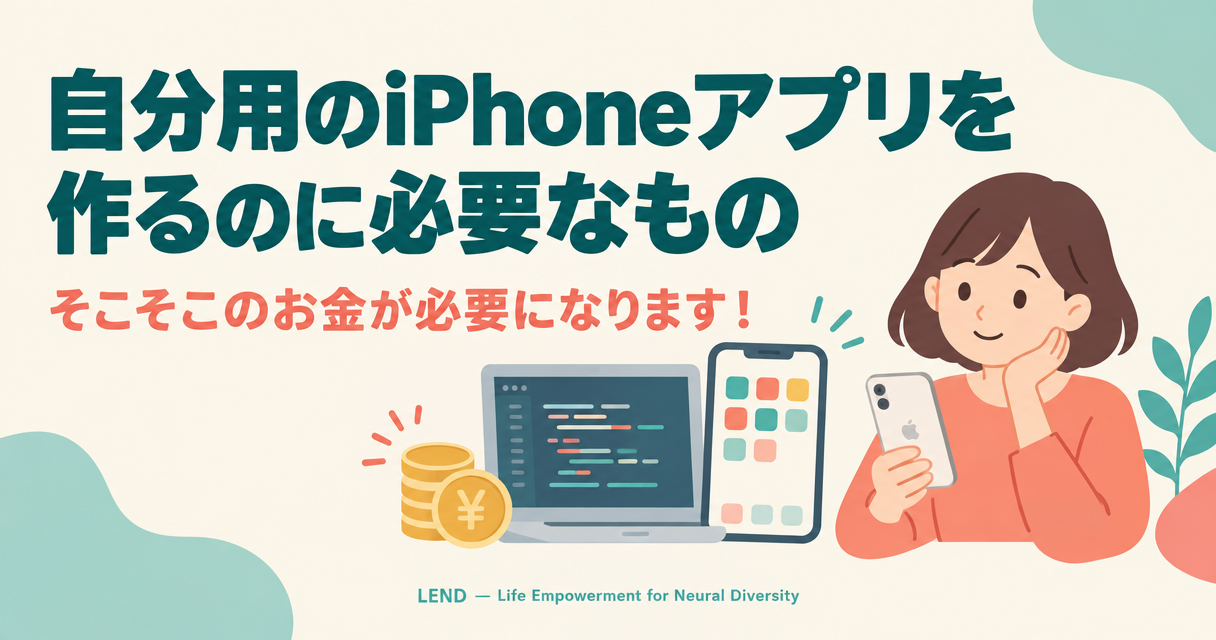
Gemini's image recognition feature is paid. As explained below, anyone can create a Google account and then generate what amounts to a "password" for using AI services—that's the API key. When you enter this key into AI TV Audio Guide, you're charged only for the audio description you actually use. Of course, if you don't use it, there's no charge at all.
Why does it cost money?
Watching a TV screen and describing scenes with good timing is a genuinely advanced capability. Smartphones do have built-in image recognition, but they can't produce proper scene descriptions. The AI TV Audio Guide app itself is free. We believe it's fairer to have you pay only for what you use, rather than charging a subscription fee even during months when you don't use it.
How to Get a Gemini API Key
You create an API key on Google's site called "Google AI Studio." You can do this on either a computer or a smartphone, but we recommend a computer since the larger screen makes it easier to work with.
What you'll need
- A Google account (If you already use one for Gmail or YouTube, you can use it as is. If you don't have one, you can create one here.)
- A credit card (You'll register one so you can pay for what you use.)
Step 1: Open Google AI Studio
- In your browser, open Google AI Studio (https://aistudio.google.com/).
- Sign in with your Google account.
- If it's your first time, the terms of service will appear. Read them over and click "Agree."
Step 2: Create an API key
- Open the API key management page (https://aistudio.google.com/apikey).
(You can also get there from "Get API key" on the Google AI Studio screen.) - Click the "Create API key" button.
- If a screen appears asking you to choose a project, it's fine to simply create a new one.
- A long string of letters and numbers starting with "AIza…" will appear. That's your API key.
Step 3: Set up billing
Just creating an API key limits how much you can use. To use it reliably, set up billing.
- On the API key management page, click "Set up billing" next to the key you created.
- Follow the on-screen instructions to register your credit card information.
- Once you're done, you'll be on pay-as-you-go billing, where you're charged only for what you use.
You can check current rates on Google's official page, "Gemini API pricing."
How much does one drama episode cost?
In "AI TV Audio Guide," for example, you can choose from models at various price points for screen recognition. As of September 2026, using the highest-performing model, Gemini 3.8 Flash, to describe scenes in a one-hour drama typically costs around $1.50 (roughly 220 yen). Using the iPhone's built-in voice makes it cheaper still, and the price also varies with exchange rates.
A helpful tip
If you're worried about overspending, you can use Google Cloud's "Budgets & alerts" to set up a notification like "Email me if I go over X yen this month."
Step 4: Enter the API key into the app
From here, open AI Studio in your smartphone's browser and copy and paste from there.
- Press the copy button next to the API key shown on the API key dashboard.
- Open AI TV Audio Guide, paste it into the "API key" field on the settings screen, and save.
That's it—you're all set!
⚠️ Handle your API key with care
An API key is just like your house key or a password. If someone else finds out what it is, they could use it at your expense.
- Don't send it to anyone via social media or email
- Don't post screenshots of it
- If it ever gets leaked, go to the API key management page, delete that key, and create a new one